You Do Not Need an App for This
Someone sends you a PDF while you are away from your desk. Maybe it is a contract that needs your signature before end of day. Or a form you need to fill out and send back. Or two files you need to combine into one before a meeting.
Your first instinct might be to search the App Store for a PDF editor. But most of those apps are either packed with ads, require a subscription, or have clunky interfaces that are frustrating on a small screen.
There is a simpler option: just use your phone's browser. ProPDFSuite is designed to work on mobile screens, so you can do everything from Safari or Chrome without installing anything.
What You Can Do From Your Phone
Sign a Document
Open propdfsuite.com/tools/sign in your phone's browser. Upload the PDF from your files, email, or cloud drive. Use your finger to draw your signature on the screen, then drag it to the right position on the document. Download and send.
The whole process takes about a minute. On a phone with a decent screen, your finger signature looks surprisingly natural because the touch input captures pressure and speed.
Merge Multiple PDFs
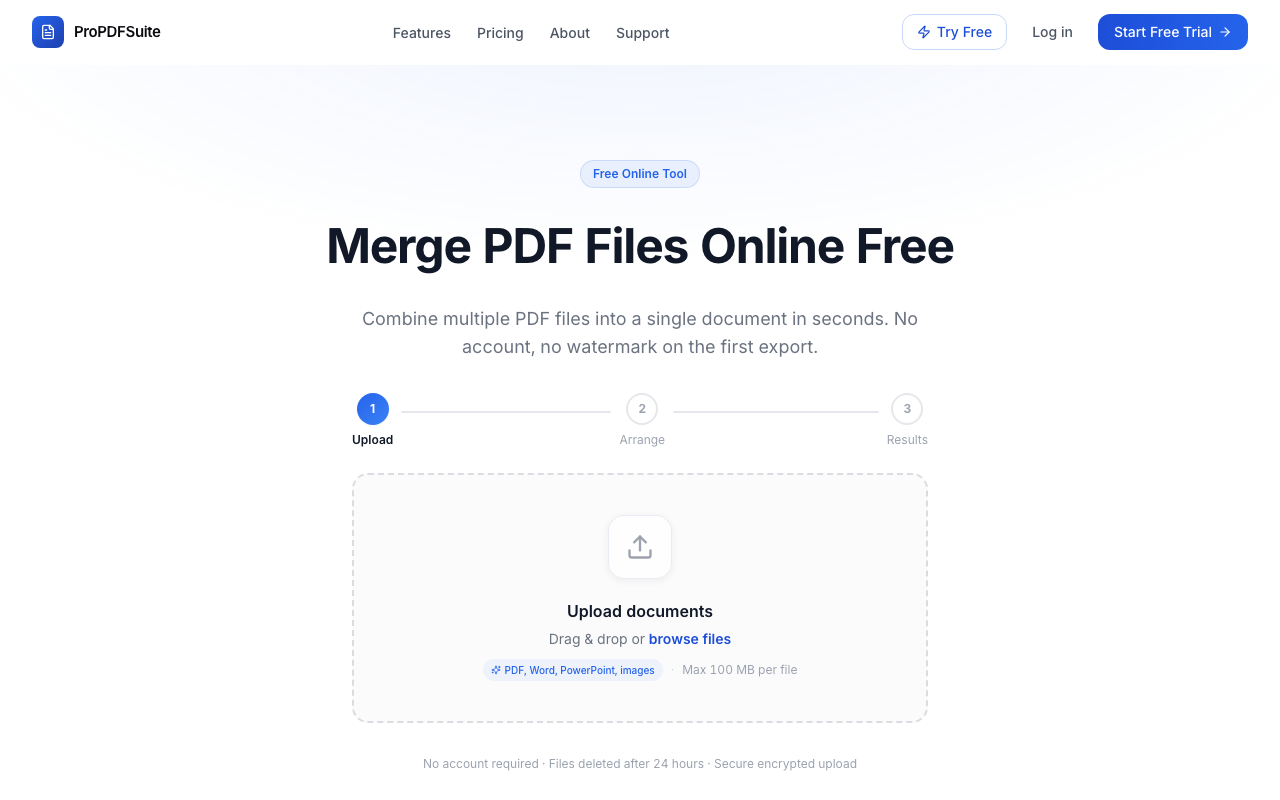
Go to propdfsuite.com/tools/merge. Upload two or more PDFs, rearrange them in the order you want, and tap Merge. This is handy when you need to combine receipts, compile a multi page report, or attach appendices to a document.
Compress for Sharing
If a PDF is too large to share over WhatsApp, iMessage, or email, open propdfsuite.com/tools/compress and reduce it. The Screen quality setting typically cuts the file size by 60 to 80 percent, which is enough to get under most sharing limits.
Split a Document
Need just a few pages from a longer document? Open propdfsuite.com/tools/split, upload the PDF, and enter the page numbers you want. Each range becomes a separate file you can download.
Fix Page Orientation
Scanned something with your phone camera and the pages came out sideways? Open propdfsuite.com/tools/rotate, pick the rotation angle, and download the corrected file.
Tips for Mobile PDF Editing
- Use landscape mode for signing. Turning your phone sideways gives you more space to draw your signature and more room to see the document.
- Upload from cloud drives. On both iPhone and Android, the file picker lets you access iCloud Drive, Google Drive, Dropbox, and OneDrive. You do not need to download the file to your phone first.
- Bookmark the tools page. Add propdfsuite.com/tools to your home screen and it works like a native app. On iPhone, tap the share button and choose "Add to Home Screen."
- Large files over WiFi. If you are compressing or merging large PDFs, use WiFi instead of cellular data to avoid slow uploads.
Privacy on Mobile
The same privacy protections apply on mobile as on desktop. Files are encrypted during upload and automatically deleted within 24 hours. No data is stored on your phone beyond whatever you choose to download.
Give It a Try
Next time you need to deal with a PDF on your phone, open propdfsuite.com/tools in your browser and handle it in under a minute. No app required.